
 MiniMax
MiniMax H3 Prompt Guide
How to write MiniMax H3 prompts: a structure that works, 5 example prompts for text to video, image to video and reference to video, the settings that change the result and how to reference your own media. Copy any prompt into the Studio to try it.
- Example prompts
- 5
- 3 tasks
- Resolution
- 2K
- 768P · 2K
- Clip length
- 5–15 s
- silent
- Per try from
- $0.044/s
- 768P
Structure
A MiniMax H3 prompt, piece by piece
Write in this order and keep each part concrete. Physical detail works better than mood words.
01
Subject
Who or what is on screen, with the details that must stay consistent: age, clothing, materials, colours.
02
Action
One clear action in the present tense. For clips up to 15 s, describe a short sequence of beats.
03
Camera
Shot size and movement: close-up, wide, dolly-in, orbit, handheld, drone.
04
Scene and light
Location, time of day, and where the light comes from.
05
Style
Lens, film look, colour grade or animation style.
06
References
Say what each reference controls, e.g. @Image1, @Video1, @Audio1: “@Image1 is the main character”.
Examples
MiniMax H3 prompt examples
Prompts written for this model, grouped by task. Open one in the Studio, then change one part at a time.
- Text to Video16:9
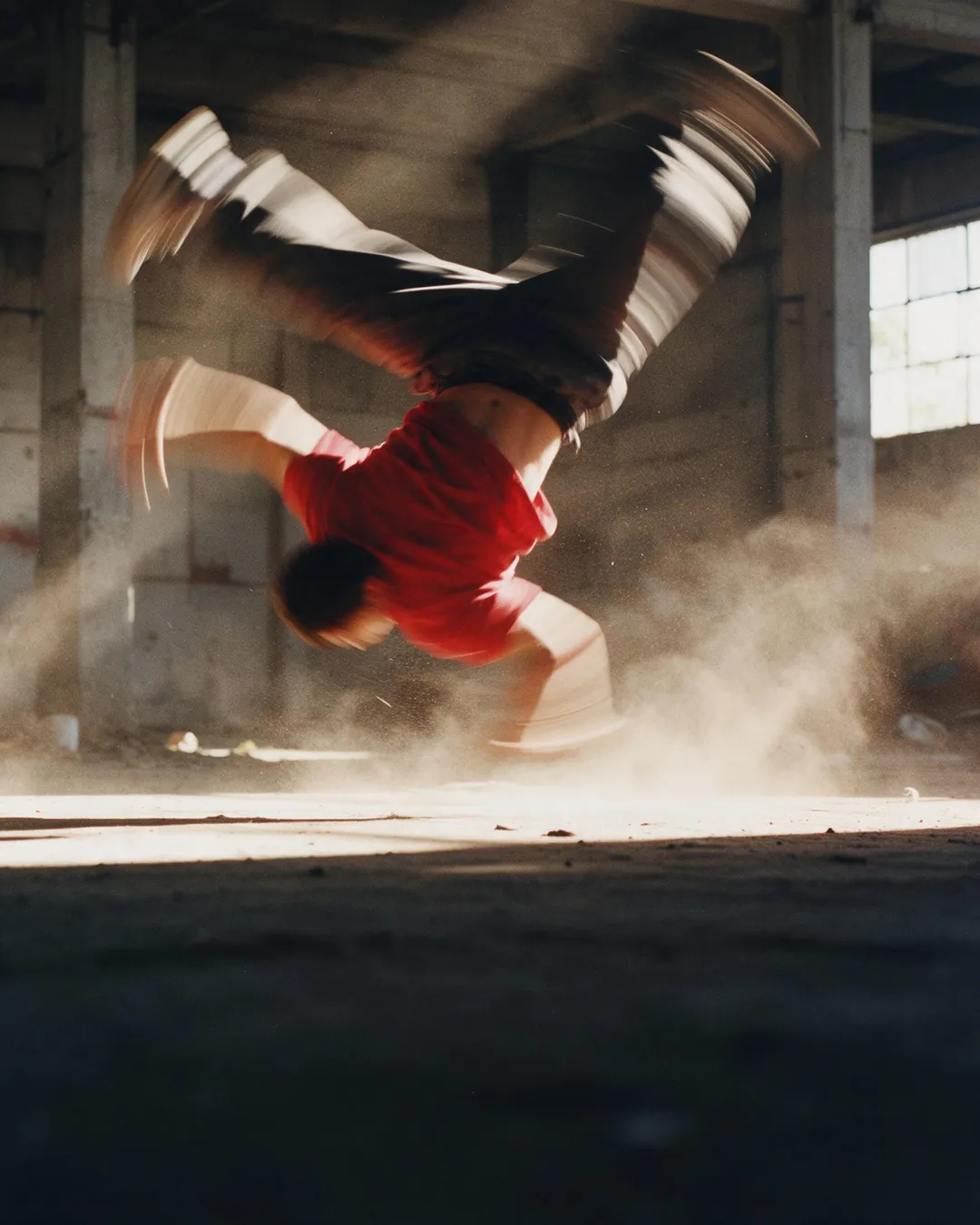
A breakdancer spins on a wet basketball court at night, puddle splashes, low-angle tracking shot
Try in Studio - Text to Video9:16
Silk fabric falls in slow motion over a marble statue, studio lighting
Try in Studio - Text to Video
A hummingbird hovers at a red flower, wings frozen in a sliver of light, nature documentary
Try in Studio - Image to Video
The poster comes alive: confetti falls and the headline glows
Try in Studio - Reference to Video
The mascot from @Image1 dances in front of the storefront from @Image2, following the moves in @Video1
Try in Studio
By task
Prompting each MiniMax H3 task
Text to Video
Everything comes from the text, so describe subject, action and camera explicitly. Put the most important element first.
Image to Video
The image is the first frame: describe the motion and camera from that frame instead of re-describing the picture. Add a last frame to control where the shot ends.
Reference to Video
Attach references and mention them in the prompt by name, saying what each one should control — character, product, style or camera move.
Referencing your own media
| Input | In the prompt | Limits and rules |
|---|---|---|
| Reference images Reference to Video · up to 5 | @Image1, @Image2… | Up to 5 images for characters, products, style or scene. Refer to them in the prompt as @Image1, @Image2… |
| Reference videos Reference to Video · up to 3 | @Video1, @Video2… | Up to 3 MP4/MOV clips for motion, camera moves or effects (2–15 s each, 15 s in total, ≤ 50 MB each). Refer to them as @Video1, @Video2… Reference-video seconds are billed like output seconds. |
| Reference audio Reference to Video · up to 3 | @Audio1, @Audio2… | Up to 3 MP3/WAV clips for voice, music or sound (2–15 s each, 15 s in total, ≤ 15 MB each). Refer to them as @Audio1, @Audio2… Needs at least one reference image or video. |
Settings
Settings that change the result
Set these next to the prompt — in the Studio or as API parameters.
| Setting | Options | Effect |
|---|---|---|
| Aspect ratio aspect_ratio | 16:9 · 9:16 · 1:1 · 4:3 · 3:4 · 21:9 default 16:9 | Output frame shape. |
| Resolution resolution | 768P · 2K default 768P | Output resolution. Higher resolutions cost more per second. Price: 768P $0.044/s · 2K $0.0715/s |
| Duration duration | 5–15s default 6 | Length of the generated clip in seconds (5–15s). You pay per second. |
| Seed seed | — | Use the same seed and settings to reproduce a result. Leave empty for random. |
FAQ